Infolinks

Showing posts with label XML. Show all posts

Tuesday, 4 September 2012

XML Publisher report


XML Publisher report
1)Develop the Report(.rdf) Only DataModel
2)Save the report and Compoile and Generate the data in .xml Format File=>Generate to File => XML
3)Open the Ms-WOrd document Design the Layout include the follwing Tool Bar options called Form and Templete builder
4)Define the Table and Specify the Titles and Labels whatever we would like to print

5)Include 'Text Form Field' Double CLick => Add Help Text button enter the following syntax : Here G_USER_ID is Group name from .rdf Data Model Note: It means Indirectley Repeating Frame starting
6)Define the Fields which we would like to display Include 'Text Form Field' Double CLick => Add Help Text button enter the following syntax ?
Note: Define all the fields like this

7)We have to close the Repeating Frame (For each Loop) Include 'Text Form Field' Double CLick => Add Help Text button enter the following syntax
8)Save the document in .rtf(Rich Text File format)
9)Load the .xml file data and generate the Output in pdf Format Data=>Load XMl Data=>Load the .xml File=>Once Data is Loaded succesfully
10)Generate the Preview as per this Preview=>PDF

Registering in Apps
1)Develop the .rdf file and .rtf file
2)Register both .rdf and .rtf file
.rdf File

registration
1)Move the .rdf file into CUS_TOP\11.5.0\Reports\US
2)Create Execuiteable
Concurrent Program Output = XML
Request Group
Responsibility
User
SRS
3)Copy the Concurrent Program Short name .rtf File
Regitration:
1)Goto the XML Publisher Administrator Responsibility
2)Select Data Definations form Enter Data Defination
Name = Enter Any Name
Code = Concurrent Program Short Name
Application = Any application
startdate = Current Date
3)Copy the DataDefination name we have to add this to the Templete
4)Open the Templete Form
Enter Templete Name : Any Name
DataDefination : enter data defination whatever we have created
Code : Concurrent Program Short Name
Type : rtf
application : any Application
File : Upload the .rtf file
Laguage : English
Territory : United States
5)Select Apply button
After register the .rtf file submit concurrent Program from SRS window system will automatically pick the .rtf file and generates the Output.
If we want to customze the .rtf file we have to download by using templete , Customize thenupload the .rtf templete

Saturday, 21 July 2012

xml-publisher-using-a-data-template-and-xdodtexe


 XML publisher report using an RDF file

 
Create a concurrent program: Use the output format as XML

Define a Data Definition for the concurrent program:
Concurrent program short name and Data definition code has to be same.
Create the data template file and upload it while defining in the data definition

Attach the concurrent program to a responsibility:
 
Run the Concurrent Program: 
 
Creating the template definition with the .rtf file:
Change the concurrent program output format to PDF:
Run the concurrent Program

XML Publisher File Structure

The XML Publisher(XMLP / BI Publisher) requires a Template layout and Data XML to generate the report in PDF, EXCEL, RTF or HTML format. The Data XML can be generated from Oracle Report and thru Data Template.
The data template is the XML document whose elements communicate the following information to the data engine.
    Data Query : The SQL query with bind parameter specifying the data to be fetched.
    Bind Parameters : Definition of each bind parameter defined in the query.
    Data Structure : Definition of the Output XML Structure.
    Data Triggers : Triggers that should be executed before or after the data query execution. Triggers are used to either do initialization or do some post query operation.
A datatemplate file is an xml file, it contains the following sections:
     1.    Parameters
a.    Parameters
b.    Lexicals
     2.    Data Query
·         sql statements – q1
·         sql statements – q2
·         link Q1 and Q2
     3.    Data Triggers
     4.    Data structure
·         Groupname-1
o    element-1
o    element-2
·         Groupname-2
o    element-1
o    element-2

XML Publisher-report-from-rdf

XML Publisher Concurrent program - XMLP

In this blog post I will detail the step by step process of developing a XML publisher report using an RDF type report concurrent program in oracle apps.

The XML publisher windows desktop patch has to be applied in you PC before developing the XML template

Overview


•          XML Publisher is a template based publishing solution by Oracle which allows us to create visually rich documents with numerous formatting options. (Available in ver.11.5.10)
•          XML Publisher makes use of the data retrieved from Reports 6i.
•          The template, designed by the developer is used as the layout for the report.
•          The template will contain the layout with tags that are mapped to the data model of the report.
•          At runtime the data from reports is merged onto the designed template to produce the final report.


Here it goes:
Before we see the step by step process, I will brief the main points:

       ·   Create a report and register it as Concurrent Program of type XML
       ·   Build a Data Definition & XML Template using XML Publisher
       ·   Create a relation between the XML Template & Concurrent Program


Develop a RDF Report concurrent program in oracle apps:

1.      Develop a RDF report and register it in oracle apps

·         Develop the Report (Report Name: Sample XML Report) Data model
·         Develop the Report Layout model
·         Define the RDF executable


·         Define the concurrent program

·         Assign this concurrent program to a responsibility

The RDF report concurrent program is complete, now we have to get the XML data file from the concurrent program and create the .xml file:

2.      Run the report from a responsibility after changing the output format of the concurrent program to XML.

·         Go to the concurrent program definition and change the output format of the concurrent program


·         Run the concurrent program


·         The XML data output of the concurrent program will look like this pic below

If you map the oracle report data model and the xml data file. It will look like this

·         Save this XML data file as filename.xml say FNDWRR.xml

Create the .rtf file. Before you do this, check whether XML publisher desktop patch is applied in your local machine. check the blog post for installing the XML publisher desktop patch: 
http://oracleapps4u.blogspot.com/2011/04/installing-oracle-bi-publisher-xml.html

3.       Load the XML data file to MS Word and save it as .rtf file


·         Load the XML file (FNDWRR.xml) into MS-Word


·         Using table wizard, form the template layout


If you map the xml data file to the word template. It will look like this
We can develop the template layout with out the table wizard, by marking up the text form fields with the corresponding tags. 

11. Insert a Text Form Field from the Forms tool bar (ViewàToolbarsà Forms)
2. Place the Text Form field in a position where you desire.
3. Double click on the form fieldàClick on the Add Help Text button.
4. Go to the Status Bar Tab and type your tag in the text field available.

It will look like this


·         Save the file in .rtf extension, say XXSMPRTF.rtf


A Bit of XML publisher

1.      Go to “XML Publisher Administrator” Responsibility and define the XML Data Definition & XML Template. Also create a relation between the XML Template and the concurrent program.


·         Create the data definition
Define the values as below:
Name: Sample XMLP Report – XML Output (Any Unique name in the Application)
Application: Receivables (Any Application)
Code: XXSMPRPT (This should be same as the Concurrent program short name)
Start Date: Leave default (sysdate)


·         Create the template
Define the values as below:
Name: Sample XMPL Report Template (Any Unique name in the application)
Application: Receivables (Any Application)
Data Definition: Sample XMLP Report – XML Output (This should be same as the XMLP Data Definition Name)
Code: XXSMPTMP (Any Unique name)
Start Date: Leave Default (sysdate)
Type: RTF
Default Output Type: PDF (As your wish)


·         Create relation ship between the XML Template and the concurrent program

In the XML Data Definition the Data Definition code should be same as the concurrent program short name. As the XML Template has the XML Data Definition name, this actually creates a relationship between the XML Template and the concurrent program.

Concurrent program
XML Data Definition
XML Template
Code: XXSMPRPT
Code: XXSMPRPT


Name: Sample XMLP Report – XML Output

Name: Sample XMLP Report – XML Output


·         Now run the concurrent program. The program output will be displayed as PDF file.


Oracle BI publisher training with OA Frame work

Oracle BI publisher training with OA Frame work

You may have known different ways of generating the XML data while using the same RTF layout template. In this example, you will generate a BI Publisher report using OA Framework. In OA Framework, you do not need to use a data template or an Oracle Report to generate a BI Publisher report. Instead, the XML data is sourced from something known as view objects.

In this example, you will develop a very simple page with a button on it. When you click the Show BI Report button, the BI Publisher report will be displayed to the user on the screen. Behind the scenes, the following events will happen when the button is clicked:


1. Trap button click event The OA Framework page is attached to a controller class, and its method processFormRequest is executed when the button is clicked.
2. Retrieve data Inside the processFormRequest, you execute a query on a view object. A view object query retrieves the data from customer and invoice tables used in this example.
3. Generate XML In OA Framework, the view objects have a method named writeXML that can dump the entire data returned by their SQL Query into XML. Therefore, you invoke writeXML on the view object and its output is written to a byte output stream.
4. Generate PDF output The BI Publisher API named TemplateHelper.processTemplate is executed, to which the template name and result of writeXML() are passed as input parameters. 

The complete list of parameters passed to the BI Publisher API for this example is shown in Table 8-2.

Table 8-2: Parameters Passed to the BI Publisher API
Description: b24-bluearrowOpen table as spreadsheet
BI Publisher API Parameter
Value Passed
AppsContext
In OA Framework, the application module has a method that returns a handle to the current database session; using this, you can return the AppsContext object.
Template
The short code of the template, which in this example will be XX_CUST_INV_TEMPLATE.
Template Application Short Name
The application short name, which in this example is CUSTOM, but in your case will be the relevant custom application short name on your instance.
Data Input Stream
The XML generated using ViewObject.writeXML() is converted into byte array input stream, which is passed as parameter to the TemplateHelper API.
Language and Territory
The language and the locale, which you can get from the current OA Framework session using oadbtransaction.getCountry and oadbtransaction .getUserLocale.
Data Output Stream
A new ByteArrayOutput stream, which you create; the template helper API writes the BI Publisher output contents (PDF in this case) into the ByteArrayOutput. The byte array received from TemplateHelper is written into the ServletResponse of the user’s browser session. This makes it possible for the user to see the BI Publisher output.

5. Display PDF output The BI Publisher API returns a stream for PDF output, which is then redirected to the browser.

XML Publisher training with example

XML Publisher training with example


You will follow these steps to complete the process:
1. Prepare XML data Create an XML file with a customer and its invoice listing using Notepad or an equivalent tool.
2. Load the XML file Load the XML data file. The file can be uploaded using the Oracle BI Publisher menu path Data | Load XML Data.
3. Develop the template Use the BI Publisher syntax to loop through the records and reference data from the XML file. You will also display running totals.
4. Save the file Save the file with an .rtf extension.
5. View the output Use the preview feature of BI Publisher plug-in to view the final output that BI Publisher report will produce.

In this example, the structure of the XML file used will be a list of customers, with the list of invoices nested within the customer group. The name of the repeating customer group is G_CUSTOMER_LIST, and the name of the nested repeating invoice group is G_INVOICE_LIST. Effectively, this is a master/detail relation between the customers and their invoices. Save the XML file as shown in the following code into a flat file named CustomerList.xml anywhere on your desktop.


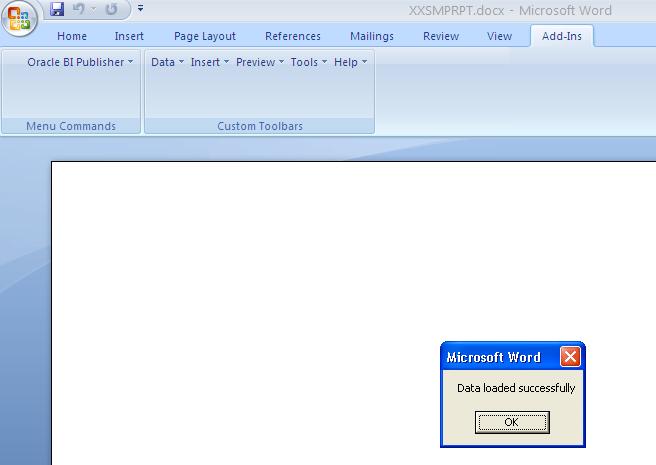
Once the XML file has been saved, create a new RTF file using Microsoft Word. Then click the Oracle BI Publisher menu in MS Word, select Data | Load Sample Data, and browse to select the file CustomerList.xml. You will get a message: “Data Loaded Successfully.” Click OK to proceed.

To display the output as shown in Figure 8-1, we will require two “for loops.” The first loop is for iterating over all the customer entries and the second loop is to iterate through the list of invoices for each customer. The tabular region listing the invoices will be within the Customer Loop. The inner loop will begin inside the table to display each invoice record.


Figure 8-1: Output of sample BI Publisher report using data in CustomerList.xml

Table 8-1 indicates how this template is built step by step. Figure 8-2 shows how the template will appear after the steps of Table 8-1 have been implemented in the RTF, which will be stored as XXCUSINV.rtf on your desktop.

Table 8-1: Steps for Building the Template for Layout as per Figure 8-1
Description: b24-bluearrowOpen table as spreadsheet
Step
Implementation Step
Loop through customers
Create a loop using the syntax <?for-each: G_CUSTOMER_LIST?>.
Display customer name
Value is displayed using the syntax <?CUSTOMER_NAME?>.
Initialize variable RtotalVar
This variable tracks the running total of INV_AMT for each customer. The syntax is <?xdoxslt:set_variable($_XDOCTX,‘RtotalVar’,0)?>.
Create table in MS Word
Create a table with two rows. Enter column headings in first row.
Loop through invoices
In the first column of the second row in the MS Word table, create a new loop for iterating over invoices within the customer loop. Use the syntax <?for-each: G_INVOICE_LIST?>.
Display invoice description
Value is displayed using the syntax <?INV_DESCR?>. This value is displayed within the invoice loop, in the first column.
Display invoice amount
Value is displayed using the syntax <?INV_AMT?> in the second column.
Increment running total
Get the current value of the RtotalVar variable and add to it the INV_AMT of current record. The syntax is <?xdoxslt:set_variable($_XDOCTX, ‘RtotalVar’,xdoxslt: get_variable($_XDOCTX,‘RtotalVar’)+INV_AMT)?>.
Declare variable to hold page total
Add this syntax to the field INV_AMT, which you need to print the page totals: <?add-page-total:xxPageTotalField;’INV_AMT’?>.
Display running total
Use the syntax <?xdoxslt:get_variable($_XDOCTX,‘RtotalVar’)?> to display the running total. This retrieves the value of variable RtotalVar.
Finish loop for invoices
After displaying the running total for the invoice, close the nested invoice loop using the syntax <?end for-each?>.
Finish loop for customers
Close the outer loop for customers using the syntax <?end for-each?>. This is done outside the table.
Show page total
Show the page total using the syntax <?show-page-total: xxPageTotalField?>.
Create inline template
Instead of placing form fields in the header/footer, create a nested template anywhere in the RTF using the syntax <?template:xxCompanyHeader?>place contents here<?end template?>. Then reference that template by calling <?call: xxCompanyHeader?> from the header or the footer of MS Word.


Figure 8-2: Template used in the example to display customers and their invoices
Once you build XXCUSINV.rtf, it will look exactly the same as Figure 8-2. Click the Oracle BI Publisher menu within MS Word and select Validate Template. Ensure that there are no errors reported when the template is validated. To see the output of this template, click Oracle BI Publisher and select Preview | PDF, as shown in Figure 8-3. This will display the output in PDF format, which will resemble the report output shown in Figure 8-1. We will use the very same RTF template when developing the BI Publisher report in E-Business Suite in the subsequent sections of this chapter.

Figure 8-3: View the output of the RTF layout in PDF format.

Note 
The RTF template is created using MS Word tool. Therefore keywords “RTF Template” and “MS Word Template” are used interchangeably.
After you develop the RTF template as just shown, you will notice that even though the RTF layout produces the desired output, it is not very user-friendly, as it contains the syntax for referencing XML elements and embedding the XML tags into the RTF template can make the RTF template look cluttered. For this reason, Oracle also provides an option to create fields within the RTF template. These fields can then be attached to the code snippet using the Advanced property, as shown in Figure 8-4.

Figure 8-4: Field property where code snippets can be embedded
For example, the Oracle BI Publisher desktop wizard can automatically create a table layout in the RTF template that has directives for “begin for loop” and “end for loop.” To try this, take a copy of XXCUSINV.rtf and rename it XXCUSINV01.rtf. Move the cursor to just above the sentence “<?template:xxCompanyHeader?>”. Using the Oracle BI Publisher menu, click Insert | Table From and drag G_INVOICE_LIST from data source to Template and select Drop All Nodes. Click OK. You will notice that a table has been created in the RTF template by the wizard. This table has two rows, and the second row contains a field titled F.
As shown in Figure 8-4, right-click the F field and select BI Publisher properties. In the Advanced tab, you will find the code “<?for-each:G_INVOICE_LIST?>”. This is exactly the same code that you write when you build the RTF template manually. In other words, you can write code in BI Publisher either by typing the code snippet directly into MS Word Template or by writing the code in the Advanced Code property of the fields. The end result is the same whether you write the logic inside the field property or directly into the MS Word template.
In the Oracle BI Publisher desktop software, you can click Oracle BI Publisher | Tools | Options | Build and enable the Hidden check box. This hides any fields created using the wizard in the RTF template. Developers may enable the Hidden property for building some components in the layout. Therefore, the best way to browse all the fields in a template is to select Oracle BI Publisher | Tools | Field Browser. This will show all the fields within the template alongside the supporting code snippets.
After you understand these concepts, we recommend that you read the Oracle BI Publisher developer guide that comes along with the BI Publisher desktop software. In the subsequent sections of this chapter, we will carry forward the template XXCUSINV.rtf that we built and use it for integrating with Oracle E-Business Suite.

Monday, 16 July 2012

XMLPUBLISHER--Template Based on Parameter

Hi All,
Today i come across a problem of selecting layout based on parameter in XML Publisher..After a bit of R&D i come up with this solutionOne way of doing it is
1.Create a plsql procedure with all the parameter of the report

2.Based on the parameter select the layout either if Else logic or some where defined in the database.

3.set the layout using this function define below submit the report concurrent request from plsql

4.This should solve the problem

Modify your PL/SQL procedure to add a line similar to xml_layout:

1. First you must declare the variable xml_layout boolean;

2. Then you must call the ADD_LAYOUT API prior to submitting your Concurrent Program.
xml_layout := FND_REQUEST.ADD_LAYOUT('FND','FNDSCURS','en','US','PDF');

req_id := FND_REQUEST.SUBMIT_REQUEST('FND','FNDSCURS','FNDSUBMIT - Active Users XML');


Just for checking whethere working properly or not..

Note: The easiest way to find out the parameters for the ADD_LAYOUT API is to run the concurrent program from standard submission then check the OPP Manager log for the parameters after a successful submission.


i.e. From $APPLCSF/$APPLLOG/FNDOPP10367.txt[5/10/05 12:08:13 PM] [10367:RT239207] Starting XML Publisher post-processing action.[5/10/05 12:08:13 PM] [10367:RT239207] Template code: FNDSCURS
Template app: FND
Language: en
Territory: US
Output type: PDF[5/10/05 12:08:14 PM] [10367:RT239207] XML Publisher post-processing action complete.[5/10/05 12:08:14 PM] [10367:RT239207] Completed post-processing actions for request 239207.


The syntax of the ADD_LAYOUT is as follows:
-- Name -- add_layout -- Purpose -- Called before submission to add layout options for request output. --
-- Arguments -- Template_APPL_Name -
Template Application Short name. --
Template_code - Template code --
Template_Language -
Template File language (iso value) --
Template_Territory - Template File Territory (iso value) --
Output Format - Output Format --
function add_layout (template_appl_name in varchar2, template_code in varchar2, template_language in varchar2, template_territory in varchar2, output_format in varchar2) return boolean;
I didn't try this solution..as dev intance is not availble some one cross check and confirm..in the mean time i will see whether it can be done with writing plsql wrapperPlz try this one set the layout in the after report trigger..hope this should avoid the wrapper

================

Barcode in XML:

For generating reports with barcodes

1) You should have barcode font in your system i.e. Font name FREE3OF9 (Find as attachment)

2) Copy and paste the attached “Free 3of9” font in your machine directories “C:\WINDOWS\Fonts” and $JAVA_HOME\ lib\fonts

Example Java path “C:\Program Files\Java\j2re1.4.2_10\lib\fonts”

3) There is one configuration file i.e. file name is “xdo” as attachment)

4) Copy and paste the configuration file in your “XML Publisher Desktop\Template Builder for Word\config”

Example “C:\Program Files\Oracle\XML Publisher Desktop\Template Builder for Word\config”
?xml version = '5.5.0' encoding = 'UTF-8'?
config version="1.0.0" xmlns="http://xmlns.oracle.com/oxp/config/"
fonts
font family="Free 3 of 9" style="normal" weight="normal"
truetype path="C:\Program Files\Java\j2re1.4.2_12\lib\fonts\FREE3OF9.TTF"/
/font
/fonts
/config

include the tags..i removed the tags.as some problems when posting..check the configuration file once..

5) Once you have done the above setups, you can see the “Free 3of 9” font type under your MSWORD font.

6) Which column you have to display as barcode, just put this font to that column.


One thing to take care is convert the data to upper case before generating the XML
do it at the SQL level only..